Claude Code Installation & Advanced API Configuration:
Full Guide with VS Code + ccSwitch for Autonomous Coding
Claude Code tutorialClaude API configurationccSwitch usageAI programming toolsGit install
💬 “Claude’s coding chops are undeniable, but the official $20/month subscription feels steep… and pay-as-you-go API billing gives me anxiety.”
“I finally got an API key, but switching providers means manually editing config files and restarting the terminal. Such a hassle.”
If these frustrations sound familiar, you’re in the right place.
By 2026, Anthropic’s Claude Code has become the gold standard for terminal-based AI coding assistants. It can analyze your code, propose changes, and even execute Git operations — official data shows Claude Code handles roughly 85% of refactoring tasks without additional human input.
But there’s a catch: official API pricing isn’t cheap (Sonnet 4 runs $3 per million input tokens / $15 per million output), and switching between different API providers is a pain.
The good news? An open‑source tool called ccSwitch solves all of this. It lets you manage multiple API providers visually and switch between them in under 3 seconds. Paired with the official VS Code extension, you get the full Claude Code experience right inside your IDE.
In this post, I’ll walk you through the entire process — from zero to “autonomous coding.”
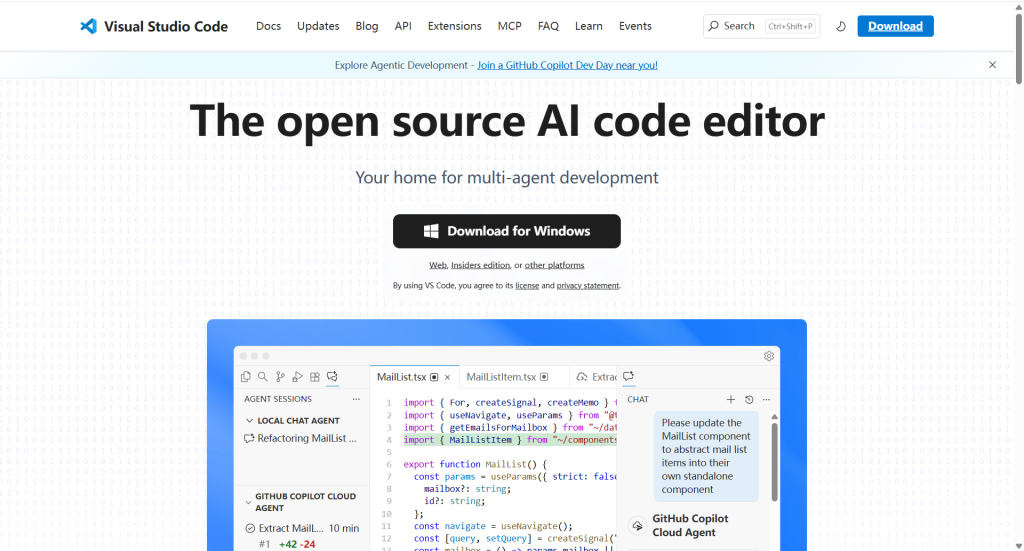
Step 1: Environment Setup — Download & Install Visual Studio Code
Claude Code is a terminal‑first CLI tool, but when you pair it with VS Code, the experience levels up significantly.
Installation Steps
- Head over to the VS Code website and download the installer for your OS.
- Run the installer. Windows users: make sure to check “Add to PATH”.
💡 Pro Tip
Claude Code works best with VS Code version 1.98.0 or higher. Windows users may consider WSL2 if compatibility issues arise.
Step 2: Initialize Workspace — Create the Claudecode_test Folder
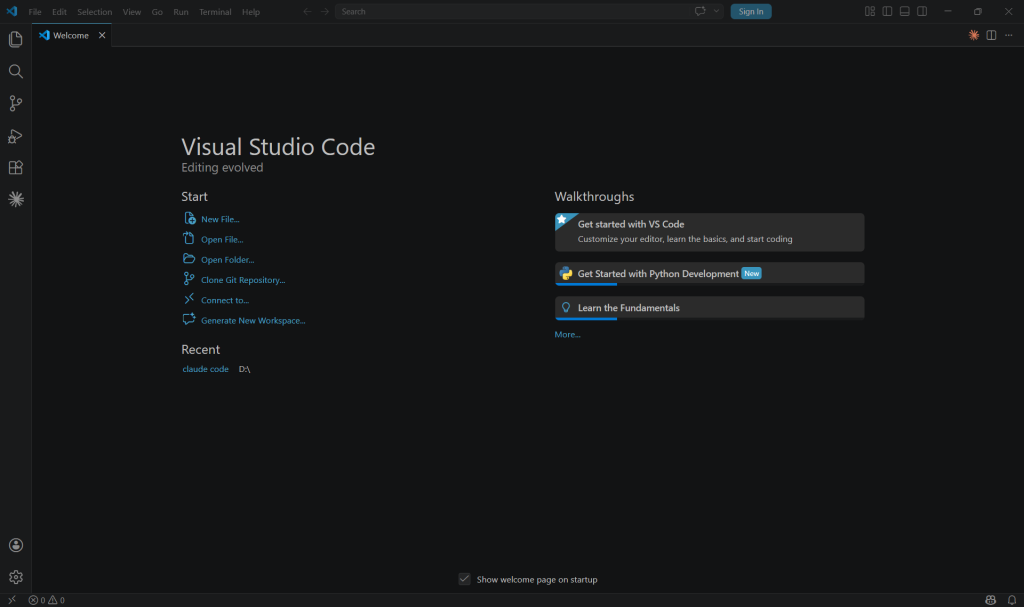
- Launch VS Code.
- Go to File → Open Folder and pick a location.
- Create a new folder named
Claudecode_testand select it.
Step 3: Engine Installation — Setting Up Node.js
Why Node.js?
Claude Code is a TypeScript application distributed via npm. In plain English: no Node.js, no Claude Code.
Install Node.js LTS
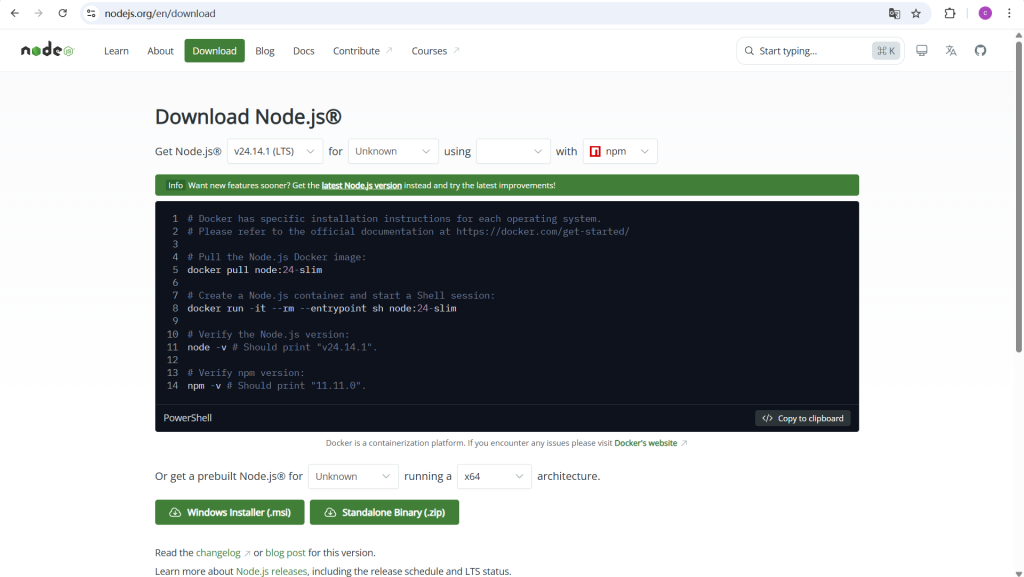
As of April 2026, the Active LTS version is v22.x. Claude Code requires at least Node.js 18, but v22 LTS starts about 12% faster.
Windows Users
- Visit the Node.js official site.
- Click the green “LTS” button to download the
.msiinstaller. - Run the installer — ensure “Add to PATH” is checked.
- Verify installation:
node -v   # Should output v22.x.x
npm -v    # Should show npm version
macOS / Linux Users
# Install nvm (skip if already installed)
curl -o- https://raw.githubusercontent.com/nvm-sh/nvm/v0.39.7/install.sh | bash

# Install and use Node.js 22 LTS
nvm install 22
nvm use 22
nvm alias default 22
⚠️ Important
If you have an older Node version, upgrade first. After installation, close and reopen all terminal windows.
Step 4: Version Control Foundation — Install Git & Why It Matters
Before installing Claude Code, we need to set up Git. Claude Code relies heavily on Git for safe versioning and rollbacks.
Why Git Is Essential
- 🔁 Smart Rollbacks: Claude Code auto‑creates Git commits before modifying code — instant revert if needed.
- 📦 Fetching ccSwitch: ccSwitch lives on GitHub; you’ll need Git to clone it.
- 🤖 Better AI Context: Claude Code reads Git history for more sensible suggestions.
Installing Git
Windows
- Download from Git for Windows (64‑bit).
- Run installer; on PATH screen select “Git from the command line and also from 3rd‑party software”.
macOS
brew install gitLinux (Ubuntu/Debian)
sudo apt update && sudo apt install gitVerify & Configure
git --version
git config --global user.name "Your Name"
git config --global user.email "your.email@example.com"
git config --global init.defaultBranch main
💡 Pro Tip
Set default branch to main to align with Claude Code’s expectations.
Step 5: Terminal Action — Install Claude Code CLI
- Open VS Code integrated terminal (
Ctrl + `). - Run:
npm install -g @anthropic-ai/claude-codeVerify with claude --version.
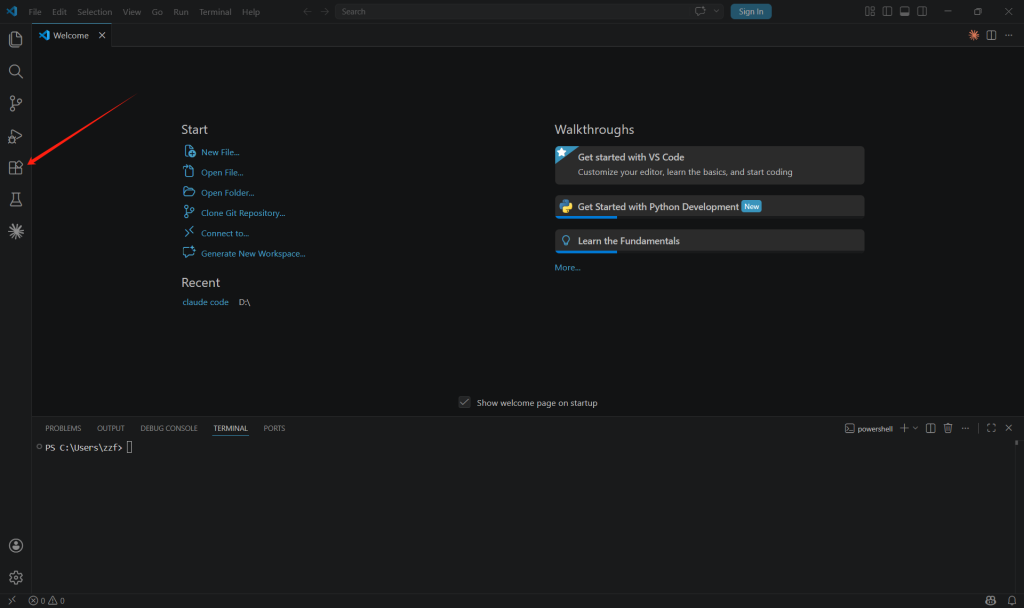
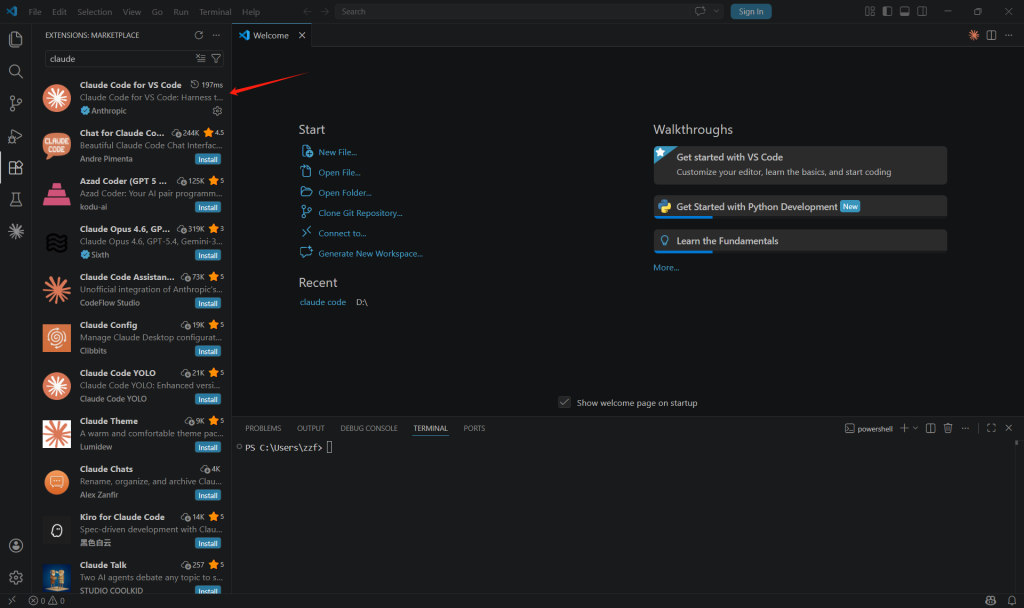
Step 6: Official Extension — Supercharge VS Code Interaction
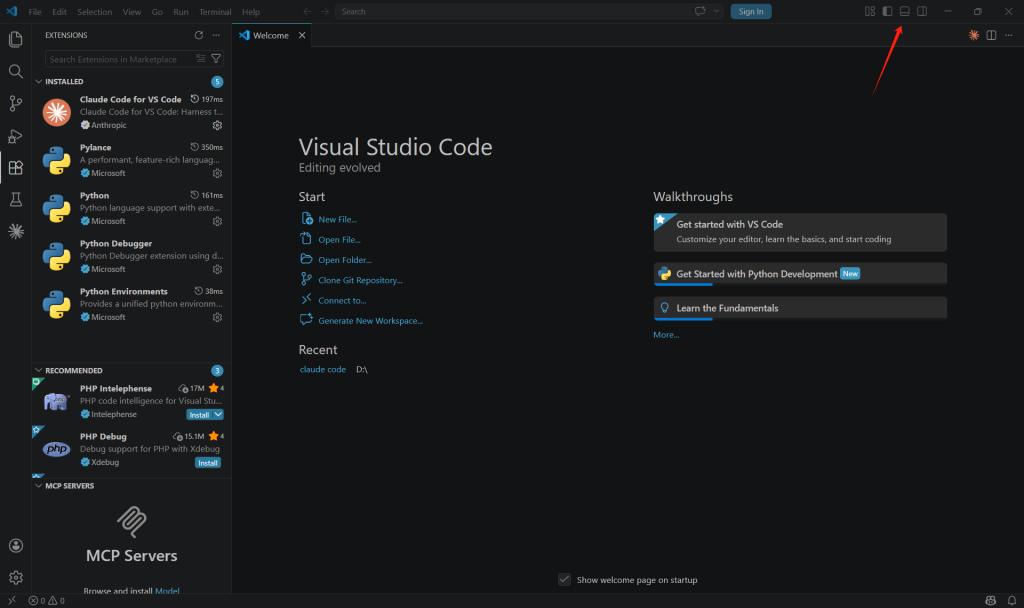
- Press
Ctrl+Shift+Xto open Extensions. - Search for “Claude Code” and install the extension by Anthropic.
Step 7: Cost Optimization (Advanced) —
Introducing ccSwitch
ccSwitch is an open‑source tool that lets you manage multiple API providers and switch between them with one command.
# Install via Go
go install github.com/ccswitch/ccswitch@latest

# Or download binary from releases
Step 8: API Preparation — Get Official API Key
- Go to Anthropic Console.
- Enable Coding Plan under Plans & Billing.
- Create a new API Key under API Keys and save it immediately.
⚠️ Security Warning
Never commit your API key to a public repository.
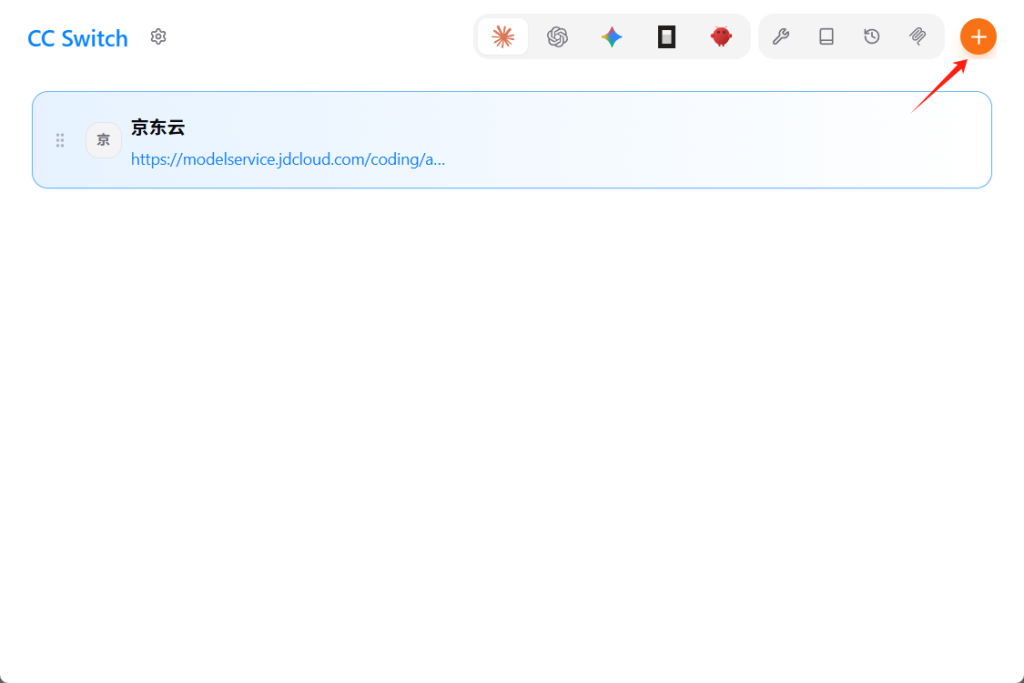
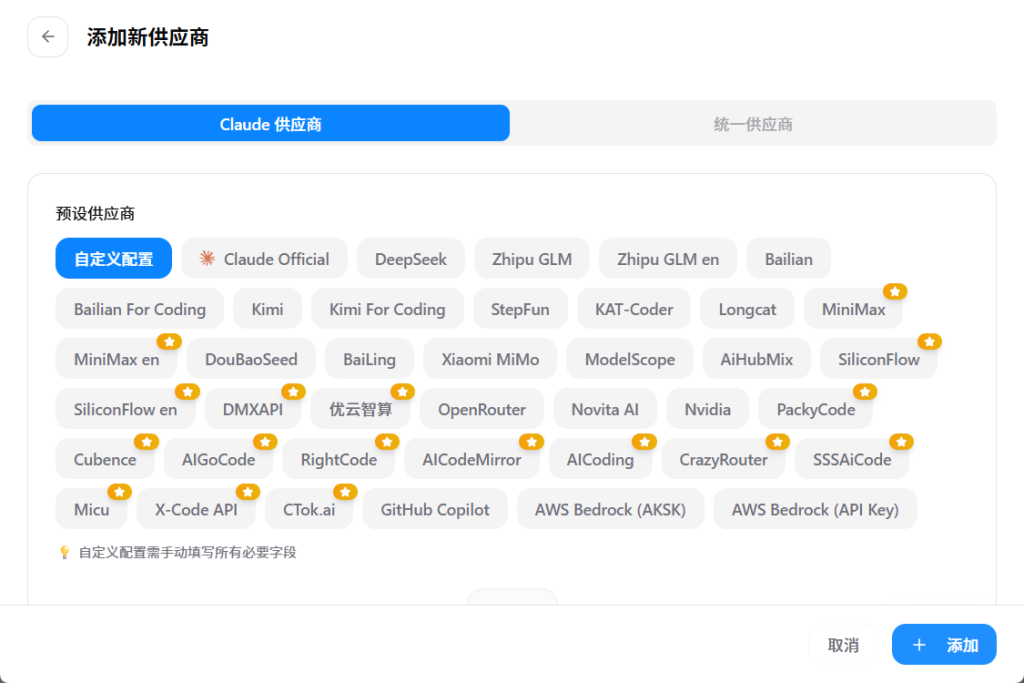
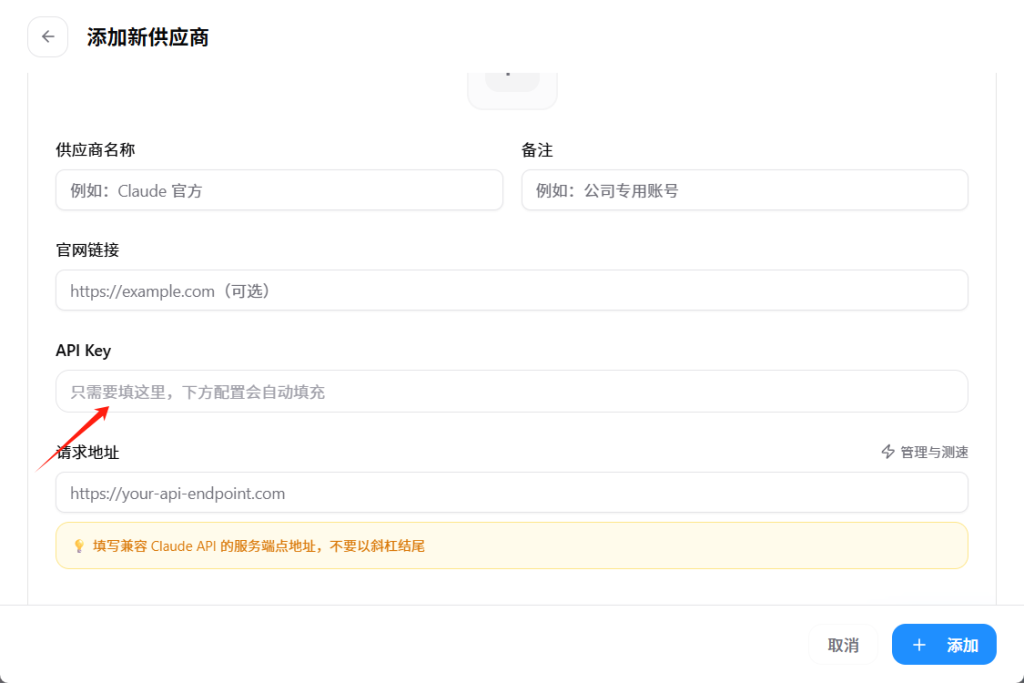
Step 9: Final Configuration — Add Providers &
Activate
# Add official provider
ccswitch add --name "Anthropic Official" --provider anthropic --api-key sk-ant-xxxx

# Add third-party (e.g., OpenRouter)
ccswitch add --name "OpenRouter-Claude" --provider openrouter --api-key or-xxxx --base-url https://openrouter.ai/api/v1

# Switch provider
ccswitch use "OpenRouter-Claude"
ccswitch current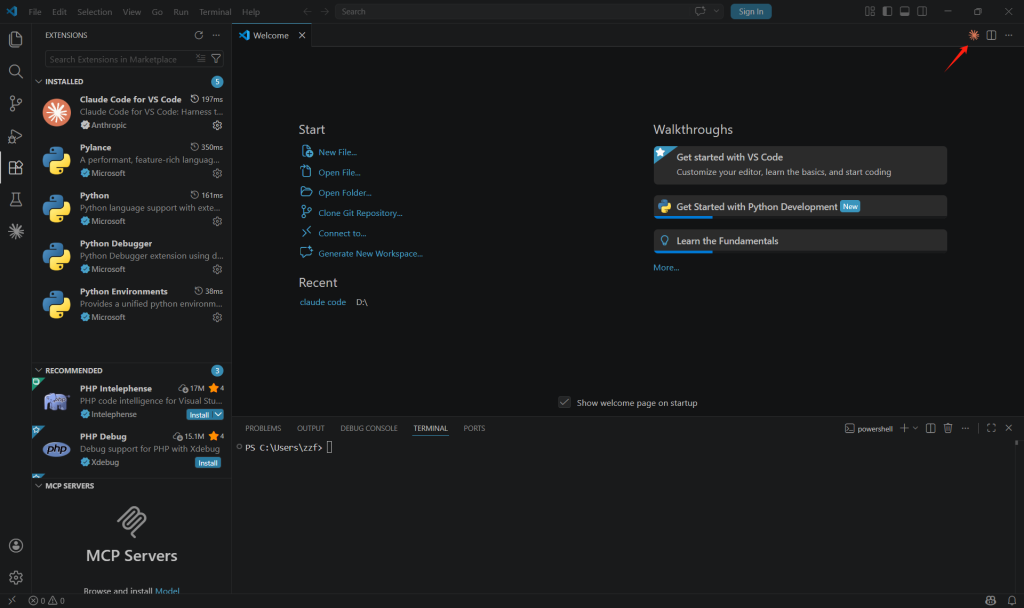
Experience Autonomous Coding
Run claude in the terminal and try:
"Write a Python function for quicksort with detailed comments."Common Pitfalls & Troubleshooting
- npm install slow/fails: Use a mirror:
npm config set registry https://registry.npmmirror.com. - claude: command not found: Add npm global bin to PATH.
- Git not recognized: Reopen terminal or add Git to PATH.
- ccSwitch changes not applying: Close all Claude Code processes and relaunch.
🎯 Summary: You now have a low‑cost, high‑control Claude Code development environment.
If this guide helped you, share it with fellow devs — let’s make the “best Claude” accessible to everyone.
© 2026 Moxeni · Licensed under CC BY-NC-SA 4.0
Keywords: Claude Code tutorial · Claude API configuration · ccSwitch usage · AI programming tools · Git installation